
Configure Table Tiling
To use Table Tiling, you first need to create a Layout. A Layout is simply a configuration of tables (sizes, positions, etc.). Click on "Create a Layout."
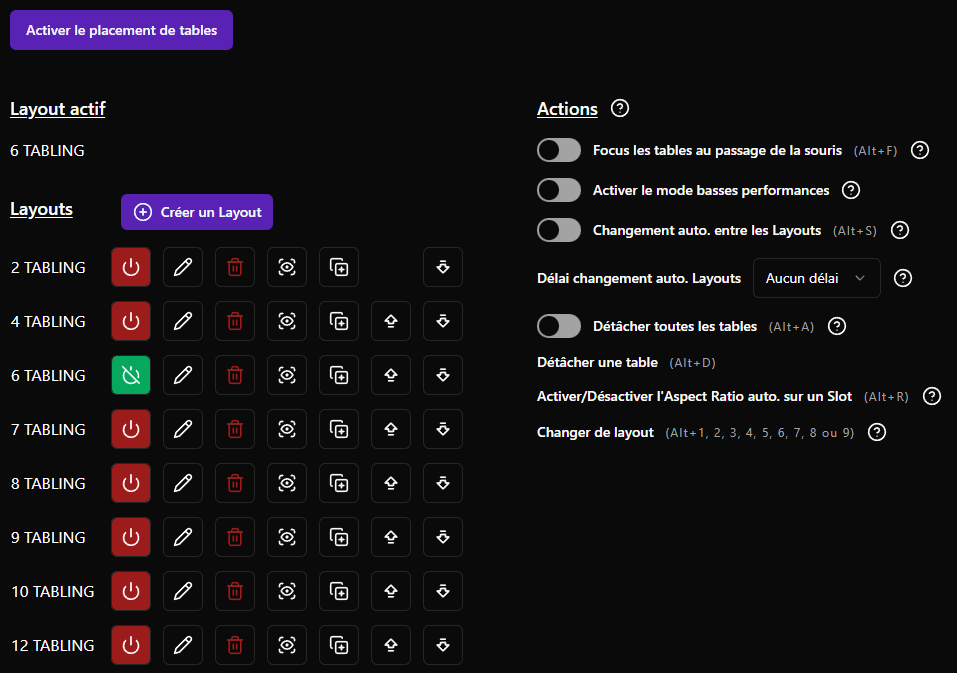
This will open a popup and create your first Slot. A Slot represents a space where a poker table will be placed.
Start by giving a name to your Layout, such as indicating the number of tables in the Layout.
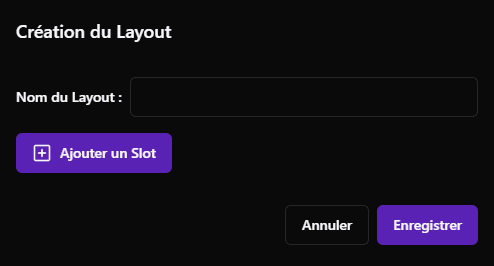
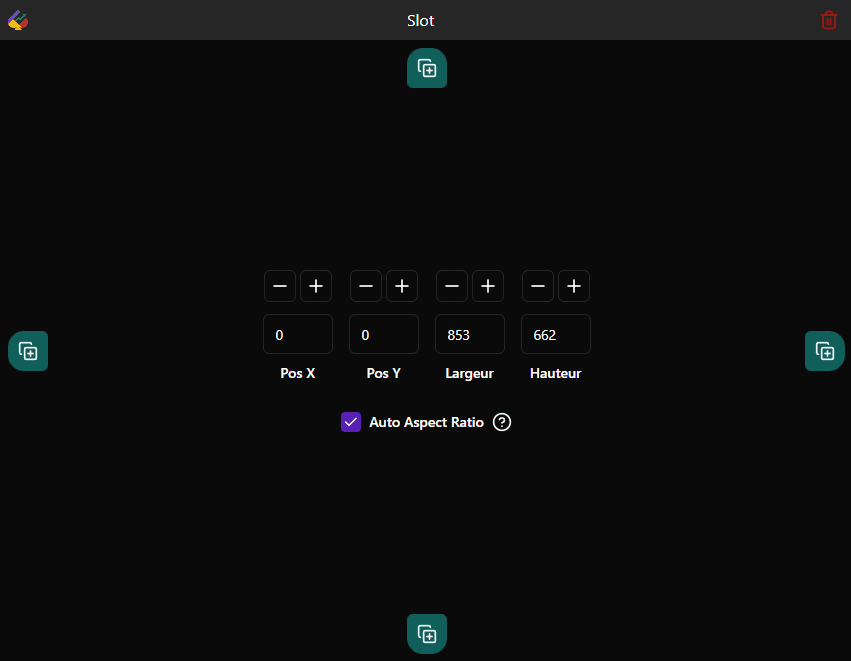
Regarding Slots, you can move them with your mouse and resize them as you wish, down to a minimum size of 350x350 pixels.
You can also adjust the "Pos X," "Pos Y," "Width," and "Height" values within the Slot. Additionally, you can use the + and - buttons for precise adjustments to your Slots' coordinates.
The X and Y positions correspond to the coordinates in the virtual rectangle encompassing your monitor setup. The coordinates (0;0) refer to the top-left corner of your primary monitor. If you have multiple monitors and secondary screens positioned above or to the left of your main screen, negative coordinates for Slots on those screens are possible. This is not an issue.
To view your monitor setup, right-click on the desktop and select "Display Settings."
It is recommended that the "Scale" setting is set to 100% for all your monitors. If some monitors have a scale higher than 100%, it may cause bugs.
You can use the buttons at each end of a Slot to duplicate it in the chosen direction. The new Slot will snap next to the current Slot and have the same dimensions.
The "Auto Aspect Ratio" setting, when enabled, allows Pokstats to define the Height/Width ratio of poker tables based on those set by poker rooms. When disabled, Pokstats will attempt to force table dimensions to match the Slot dimensions. This may cause visual distortion but allows uniform table sizes. Disabling this setting currently doesn't work for PokerStars or PartyPoker/PMU. If you're unsure about this setting, it's best to leave it enabled at all times.
Once you've positioned all your Slots as desired for your Layout, click Save. You can create as many Layouts as you like.
Using the buttons to the right of each Layout, you can Edit, Delete, Preview, Duplicate, and Reorder all your Layouts.
Only one Layout can be active at a time. You can activate a Layout using the red Power button to the right of each Layout or via keyboard shortcuts, which we'll cover below.
Actions and Keyboard Shortcuts
Several settings are available, all associated with a keyboard shortcut:
- Focus tables when hovering the mouse. Activates tables when the mouse hovers over them.
- Automatic Layout switching. When enabled, Pokstats automatically manages the Active Layout based on your number of tables.
- Detach all tables. Disables table magnetism while still allowing keyboard shortcuts.
- Detach/Reattach a table. Shortcut-only feature that allows detaching a table to position it freely.
- Enable/Disable Auto Aspect Ratio on a Slot. Dynamically modifies this setting for a Slot and saves it to the Layout.
- Switch Layout. You can use 9 keyboard shortcuts to quickly switch between Layouts. This is why ordering your Layouts in a specific sequence is helpful, so shortcuts follow a logical order.
Additional Info
Pokstats doesn't always differentiate well between types of poker tables (Game Table, Replayer Table, Observation Table). Depending on the Poker Room, observation and replayer tables may or may not be detected. Tables taken into account:
Winamax: Observation tables
PartyPoker/PMU: Observation and Replayer tables
Pokerstars:
iPoker/Betclic: Observation tables
Unibet:
GG Poker:
If a table isn't detected by the automatic placement or you think you've identified a bug, you can report the issue on the Community Discord.
Known Sources of Issues:
If your game is in a language other than English or French, table detection is likely to encounter issues.
If one of your monitors has a scale factor different from 100%, this may cause malfunctions with screen setup coordinates.
If your computer isn't very powerful and you notice slowdowns, you can disable the table focus on mouse hover option or enable low-performance mode.