
How to Set Up the Best Table Layout
In this article, I will show you how to set up the best possible layout for your table placement.
First of all, it's important to understand that each poker room has a different height/width ratio (Aspect Ratio) for its tables. This ratio is not fixed, meaning it varies depending on whether the poker table is small or large, and its progression is not linear.
Therefore, depending on the dimensions of your Slots and whether the "Auto Aspect Ratio" setting is enabled or not, you might see gaps between tables.
It's also worth noting that this Aspect Ratio varies based on the "Scale Factor" (Scaling value in your screen settings, accessible by right-clicking on the desktop and selecting Display Settings).
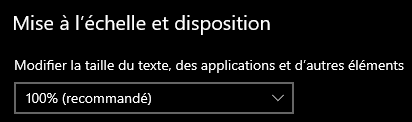
To avoid all sorts of issues and edge cases, it is recommended to set the Scale Factor to 100%. However, depending on your screen size and resolution, as well as the distance between your eyes and the screen, it may be more comfortable to use a value of 125% or 150%. This is why I will show you how to set up your Layouts with a Scale Factor other than 100%.
To begin, identify the poker room you play on the most. For this example—and since it will likely be the case for many players—we'll use Winamax. Then, we'll ensure that all our Slots have an Aspect Ratio matching a valid one for Winamax using the calculator below.
If Winamax is not your primary room but you still play on it, I still recommend creating Slots that respect Winamax's Aspect Ratio, as Winamax is currently the only room that distorts its tables to the point where they become unplayable if overly deformed (especially in height). If you create Slots using Winamax's Aspect Ratio, you can disable the "Auto Aspect Ratio" setting for all Slots. This will distort tables from Unibet, iPoker, and GG Poker to match the dimensions of Winamax tables.
In the calculator below, enter the resolution and Scale Factor of the screen where you place your poker tables. Then select the poker room for which you want to calculate the dimensions, here Winamax. Next, choose the number of rows and the number of tables per row. Finally, you can select a safety margin if you have another screen next to your grinding screen with a different Scale Factor, to avoid edge issues by adding spacing on that side of the screen. You can also adjust the height of the taskbar based on your resolution (40 for 2560x1440, 60 for 3840x2160, 30 for 1920x1080, and 0 if hidden).
Once all fields are filled, the calculator will display the recommended dimensions for your Slots. You can use these to build all your Layouts (4 tables, 6 tables, 8 tables, 12 tables, etc).
Calculator
If you need help configuring your Layouts, you can ask for assistance on the Community Discord.